
01 / WORDS → FORM
Describe what you imagine
Create a starting point for props, characters, and objects from a written description. Try a different material or silhouette by adjusting your prompt.
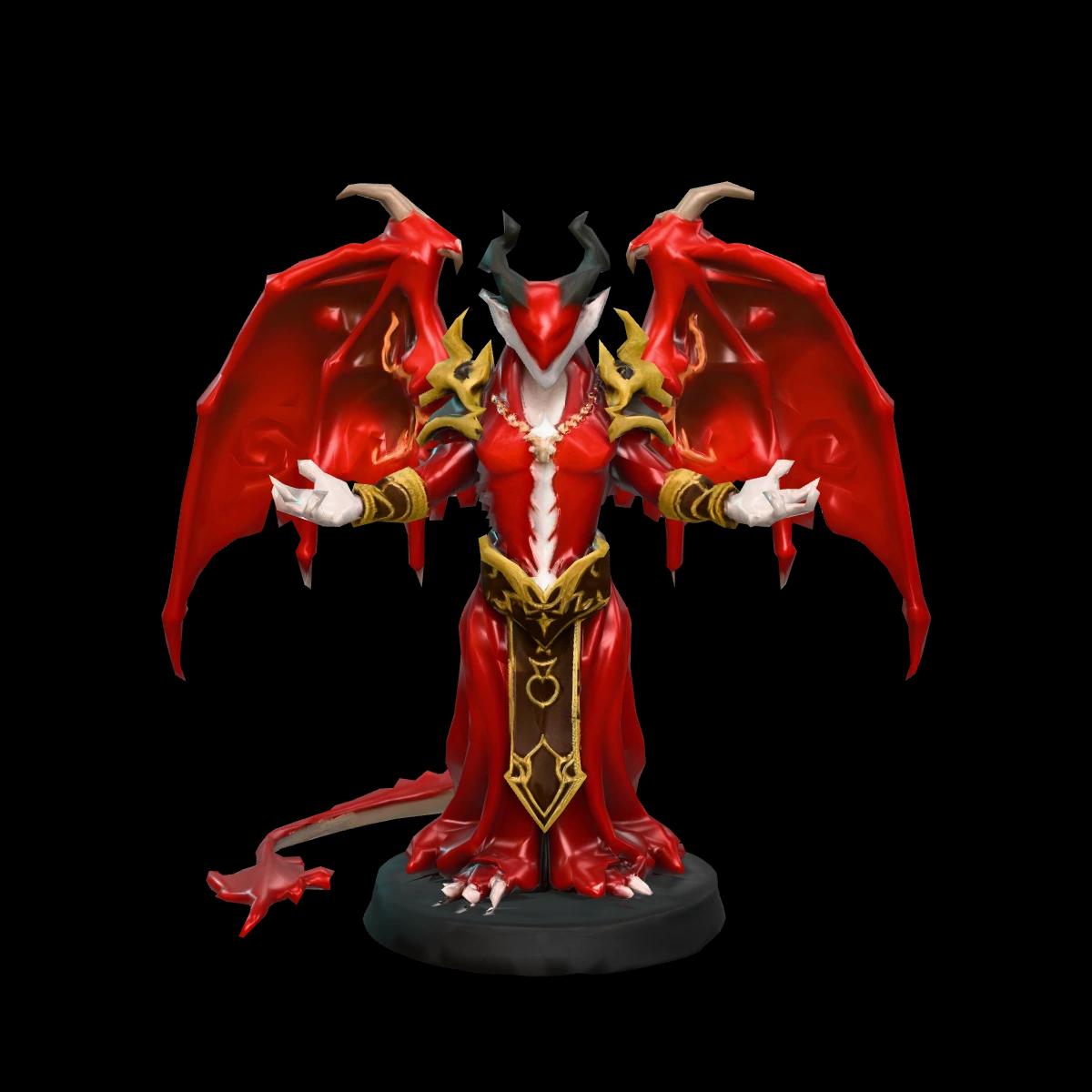 Example model created with Hello 3D
AI TEXT TO 3D MODEL GENERATOR
Describe an idea and turn it into a 3D model with Hello 3D. Explore shapes, characters, and props without starting from a blank mesh.
Hello 3D sample model · illustrative previewSTART WITH AN IDEA
A small creature with curling horns, layered armor, and a hand-painted finish.
Describe the subject, materials, and style.
Prompt example and sample model shown separately.
Sign in to generate. Text-to-3D starts at 10 credits (base mesh) or 20 credits (textured).
A SIMPLE WORKFLOW
MADE FOR EXPLORATION
Use a description as a starting point, inspect the result in 3D, and make it part of your workflow.
Create a starting point for props, characters, and objects from a written description. Try a different material or silhouette by adjusting your prompt.
Example model created with Hello 3DA 3D model is more than a flat image. Rotate the generated result and look at the sides and back before you decide what to refine.
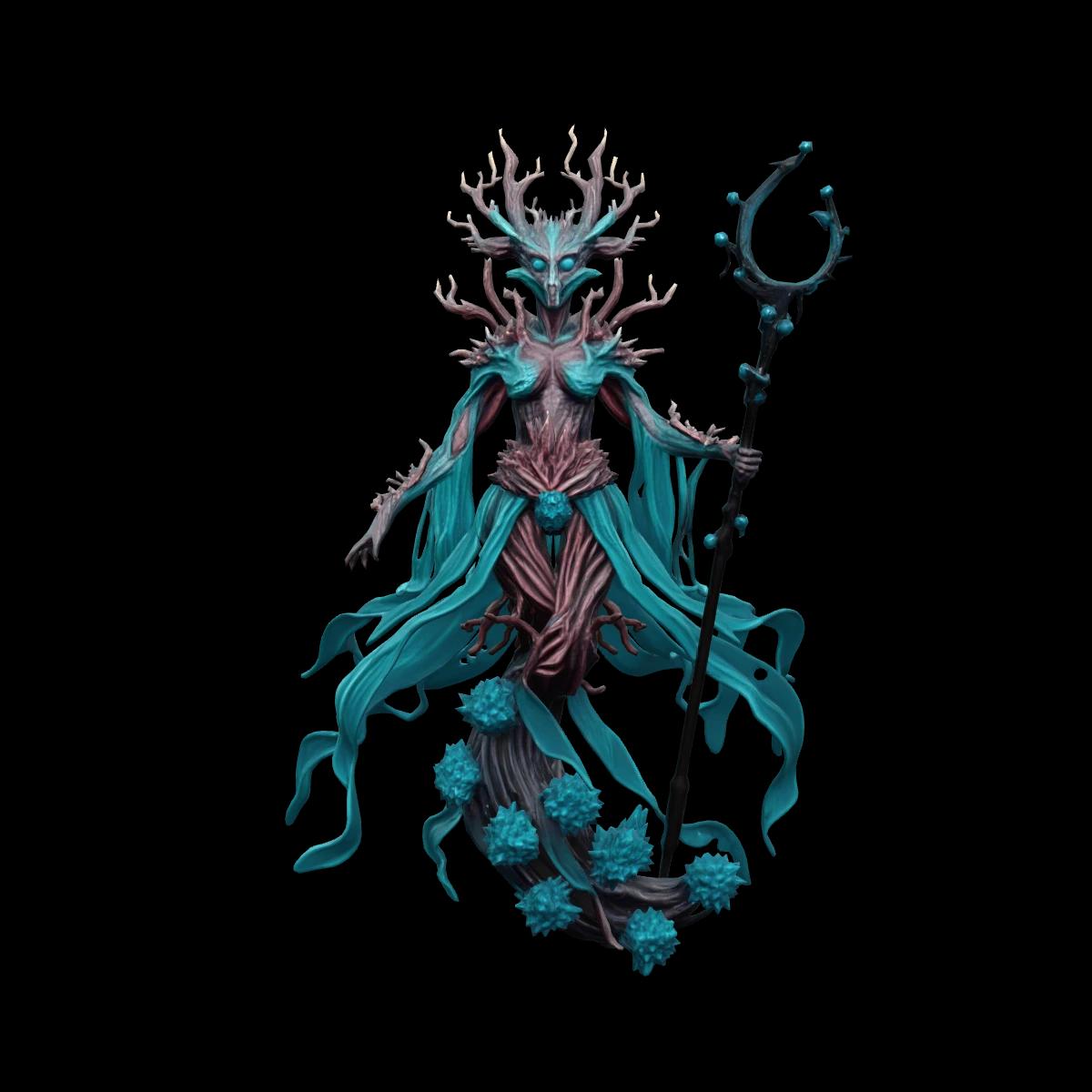 Example model created with Hello 3D
Download the model for editing or choose from supported export formats. Check geometry and scale in your own software when precision matters.
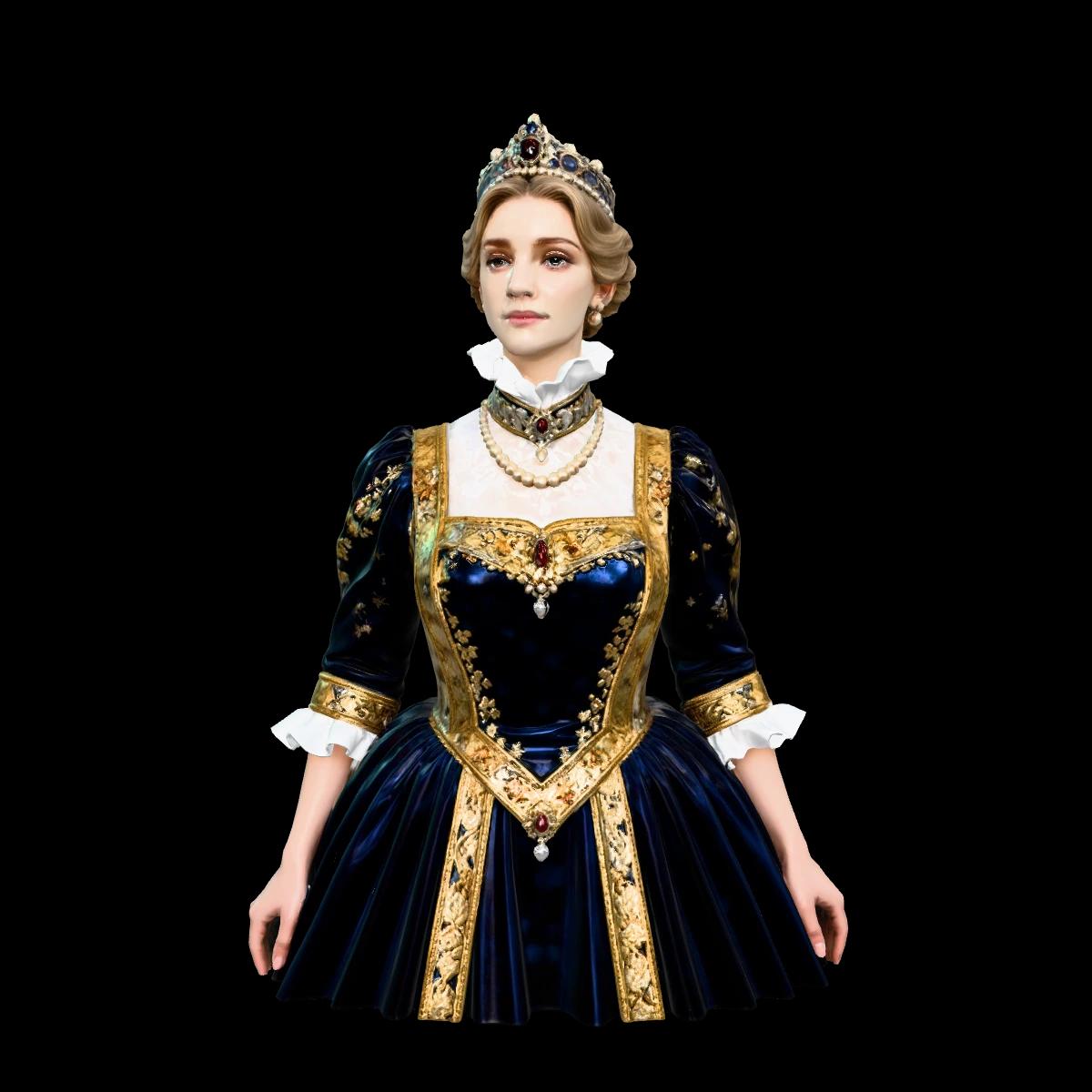 Example model created with Hello 3D
BETTER INPUTS, CLEARER IDEAS
Start with one subject, then add details that describe its shape and appearance. Simple, specific descriptions are easier to iterate on.
SUBJECT + SHAPE + MATERIAL + STYLE
“A small wooden treasure chest, rounded lid, iron bands, stylized game prop”
Describe the object itself rather than a busy scene with multiple subjects.
Mention features that affect the silhouette, such as a curved handle or broad base.
Compare the result to your idea, then adjust the description and try again.
Text is a useful starting point when you have an idea but no reference image. For an existing object or an exact design, an image or multiple views give the model more visual guidance.
QUESTIONS, ANSWERED
Learn about prompts, credits, formats, and what to expect from an AI-generated model.
Text to 3D generates a three-dimensional model from a written description. Tell Hello 3D what object you want, generate it in the studio, and inspect the model from different angles.
Open the text-to-3D studio, enter a description of your subject, choose the available settings, and start generation. When it finishes, inspect the result and download or export it.
Describe one clear subject and include useful details about its silhouette, material, color, and style. Start simply, inspect the model, and revise your wording to explore variations.
New accounts receive free trial credits. Text-to-3D starts at 10 credits for a base mesh (no texture) or 20 credits with standard texture, and the studio shows the exact credit cost before you start.
Generated models can be downloaded as GLB. Other formats, including OBJ, FBX, and STL, are available through the export workflow; additional export credits may apply.
You can export an STL for a printing workflow, but inspect and repair the model in appropriate software first. Check dimensions, wall thickness, mesh integrity, and other requirements for your printer.
Use text to explore an idea when you do not have an image. Use an image when you want the generator to follow a visual reference; multiple views can provide more information about the sides and back.
Not always. AI-generated geometry and details can differ from your prompt, and dimensions are not guaranteed. Review the model and refine or edit it for your intended use.
Start with a few words and explore what you can make in 3D.
Start creatingMore ways to create